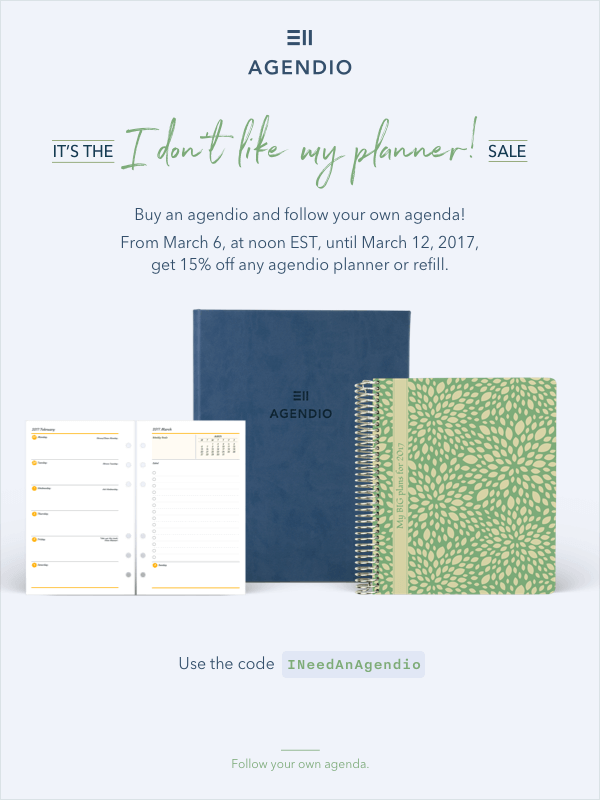
We know it’s not the new year, but we just wanted to let you know that agendios starting in January 2018 are now available.
They were scheduled for the end of summer, but many of you asked us to make them available earlier, so they’re ready now.

We know it’s not the new year, but we just wanted to let you know that agendios starting in January 2018 are now available.
They were scheduled for the end of summer, but many of you asked us to make them available earlier, so they’re ready now.
You want to add tables to your planner but you wish you could adjust the width of each column depending on its use. Now you can.

On the Extra Pages page, choose the “Flex Tables” category, find a model with the number of columns you want, add your labels at the top of each column and then customize the width of each column to suit your needs: Make them wider for names, narrower for progress checkmarks or numbers. As with all Agendio features, you can customize it so it suits your needs.
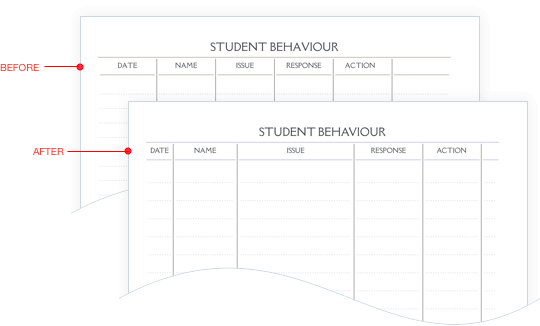
Please notice that the customize column for Flex Tables has two tabs/panels: One for your labels and one for customizing your lines and checkboxes and shading. You now have so many options that they don’t all fit in one panel anymore!
Once you give it a try, please use our feedback page to let us know what you think, if you like this new feature and how you would make it even better!
Do you need tracking pages in your agendio to keep track of what you do, what you eat or how much you exercise? Do you want a paper record to make sure you take your vitamins and pills every day? If you need to track these or any other things, you can now use our new customizable Tracker Pages.

We offer yearly by month, monthly by day and weekly by day formats, and, depending on the size of your planner or refill, they are available in both full page and half-page formats.
You’ll find the tracker pages in the Extra Pages section of the builder, after Future Month and before Music.
We have now added help videos to the builder.
In case you’re having difficulties understanding how to customize your extra pages, or maybe it’s all clear except for one detail, we added eight videos to the extra pages section. It shows how to do anything related to extra pages, including how to add pages, customize them, replace included pages, select the number of pages to add, where to place them within your planner and much more.

After you check them out, please let us know what you think. We’re thinking of adding some help videos to other builder pages as well, but first we’d like to hear back from you: Do they explain well? Are they the right length? Whatever you think, good or bad, whatever the issue, we’d love to hear now before we make more of them.
You asked us for more cover designs. So we have added eight new designs, including an entirely new section, “Tone on tone”, two new varieties of plain covers, as well as more covers in the “Dot” and “Other” categories.

Keep the suggestions coming and feel free to send us more PNGs and JPGs of cover designs you like!
Agendio planners include Divisibles and can also include Extra pages. Earlier this year we thought, what would happen if we put them together? Well, now we know:
Introducing the Agendio divisible Extra pages! Full-size pages with either one or two columns, each of which can be divided into 1 to 8 pagelets, and each pagelet with it’s own label, lineage, checkboxes and shading.

To try them out, go to the Builder, to the extra pages tab, and look for Divisibles in column 1.
Up to now, our monthly mini-calendars followed the same start day as the main planner. That worked well for those of you who wanted to start both on Sunday or both on Monday.
However, some customers wanted to start their weekly planners on Monday and their mini-calendars on Sunday and they couldn’t. Until now.
As of this week, you can select start days for each of your layouts and for your mini-calendars independently!

Look for the selection dropdown on the info (first) screen of the builder, choose your day and you’re good to go.
You asked for it, so we made it (# 273): We’ve added our long-awaited Preview feature!
You can now view your agendio in more detail before you purchase it, including the sequence of your extra pages, your labels, whether your extra pages are where you expect them to be and much more…
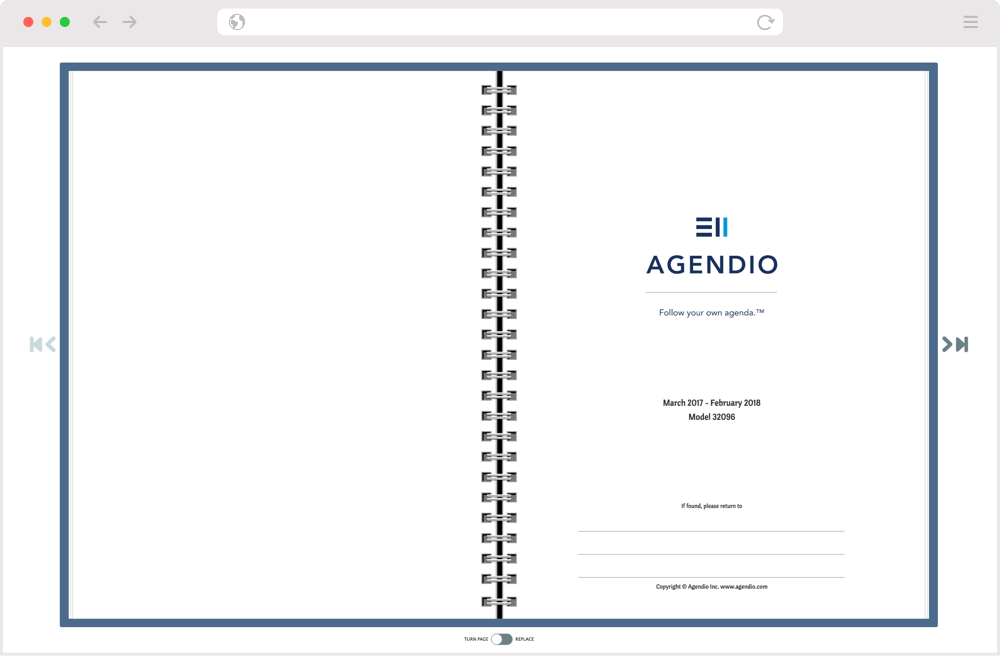
On the review page, click on the Preview button and you will see your planner on screen, starting with page 1. You can choose to Advance page-by-page or fast-forward.

Check it out with an agendio you customized and let us know what you think of it.
We’ve received a few comments here and there from customers mentioning the small size of the fonts used for their labels. But the comments were infrequent and irregular, so it was hard to figure out a pattern. However, we recently took a more in-depth look at this issue and we found something that, in hindsight, should have been obvious: Only certain fonts seem to cause this reaction.
So we looked at those fonts and found that, even though they’re the same official font size as our other fonts, they’re not the same size at all. They’re much smaller.
You can see in the image how the print sizes of our smallest four fonts are different from our bigger fonts.

So we have updated our code that if you choose one of the smaller fonts, we’ll automatically boost them by one size, which means that your labels will be similar in size as if you had chosen one of our bigger fonts.
Powered by WordPress & Theme by Anders Norén