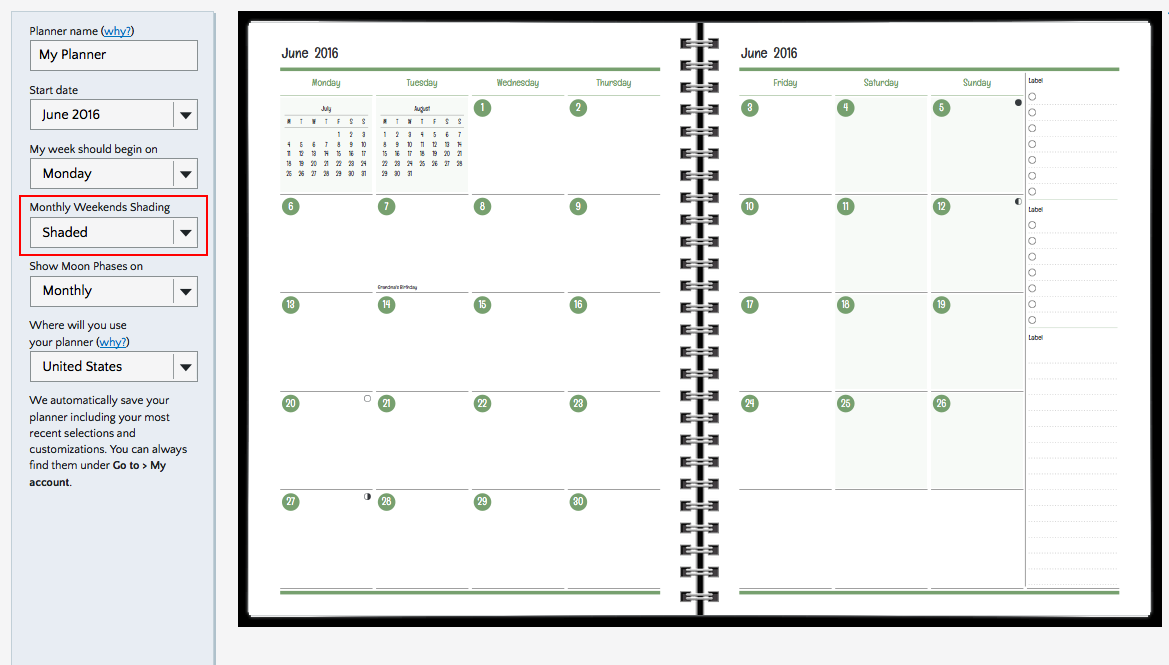
Do you like shady weekends?

We added shading options a few weeks ago and already we’re seeing many great-looking planners where you have added shading selectively and very well.

But a few of you pointed out that something was missing: What about shaded weekends on monthly layouts, especially on row layouts, where it can be hard to follow each row since there are so many of them? We allowed you to shade or not to shade but we didn’t give you the option to shade only on weekends.

Monthly Row Shaded

So now we’ve added shaded weekends as an option on monthly agendios. It’s a simple pulldown menu selection (Shaded, not shaded). Look for it on the info screen when you start on the Builder.

Monthly Grid Shaded info page


Extra, Extra! Get your extra pages!

About 75 or 100 years ago, newspaper sellers would shout out “Extra, extra read all about it!” when selling their papers, if a big event happened after the main edition had been printed and an extra edition had been printed with the latest news.

So, we’re shouting too, to let you know that we have updated our extra page selections in a very big way! We have added a big selection of extra pages of 5 types, each with a line that adjusts to your custom color selection, and also offering three different line spacings (3/16″, 1/4″ and 5/16″).

Here are samples of our lined, dotted, grid and grid-dash lines:

Lined

Lined extra sheet2

Dotted

Postbook-L-DotsPage-416-Full

Grid

Postbook-L-GridFullPage-416-Full

Grid with dashed lines

Postbook-L-GridDashPage-416-Full

You can also add plain pages.

Depending on the frequency you selected, you can add up to 72 extra pages and you can choose the order in which they are printed.

So, what will you choose?

Should you stay in the shading?

Now you can choose which of your planner pagelets can be shaded!

Previously we shaded specific sections of planners for visual effect, such as the monthly calendar that is usually found on the top right section of your layout.

Shade-1b

But now, you can choose to highlight certain additional spaces of your choosing, such as divisibles and label pagelets. We’ll still shade specific pagelets for you, but now you can add others of your choosing.

Here’s how you do it: If you select a pagelet that allows for customized shading, you will see a checkbox with the text “Apply shaded background”.

Check it and then click “Apply” and it will add shading to the selected section

Shade-2-red

Shade-3

It’s that simple.

Just remember: Shading is like perfume and exclamation points: Don’t use too much or you’ll spoil the effect.

Colors, Get Your Colors!

You asked for more colors so now we’ve added a bunch more just for you!

We now have 23 colors in a rainbow-like range of blues, greens, browns, yellows, oranges, reds, purples and grays. We have added softer ones such as moss and brighter ones such as pink and violet.

Planner Colors

Our new colors also provide some additional options for you to use with our red and green covers, which had fewer matches before. So now you have more choice in how you mix and match your planner grids and your cover.

If you are wondering which colors match our covers best, we have named them in a way to make it easy for you: The colors with basic names that match cover colors (black, blue, green, lavender, red, turquoise) are the ones that are closest to our cover colors. For example, if you want a blue cover and blue print in your planner close to your cover color, then pick “blue” for your inside printing.

With all these conservative print colors and wilder ones and softer tints, which one will you choose?


We have a winner!

We asked our customers to fill in a survey and tell us how they feel about their agendios and we offered one agendio of their choice as a prize.

Our winner is Gretchen Peterson from Oregon. Congratulations! Gretchen says that she’s enjoying her current agendio (a Journal-size with a weekly grid layout), so she will wait a little before ordering her new one.

Thanks to everyone for participating and for all your great feedback! You’ll be seeing some new features later this year that come straight from your suggestions.

Divisible and Conquer (1)

All Agendio planners include Divisibles, which is the name of the space for lists that you can also subdivide as you wish. We are often asked why?

The reason is simple: We all have tasks to do and things to remember that do not belong at a specific time or on a specific day. Todos that you will fit in when you have the chance, tasks you plan to juggle during the week or things to pick up or drop off when you happen to be in the area. Also, things you want to track, project  progress and your children’s activities or your school coourses. And how about one often-overlooked area: Me-Time, because it’s important to carve out time for yourself. One way to do this is to write down in your Divisible things you want to do for yourself so they are not far from the tasks you must do for your job.

Div-1

I don’t understand how some people use planner layouts that do not have enough space for general Todos. We are consistently told by our customers that they actually have more things in their divisibles than in their schedules, and when we ask whether this is new for them, the typical answer is that they always had all these responsibilities and needs, they just didn’t have a good place for them.

Div-4

If you have a busy schedule and you use a planner that consists mostly of schedule pages and limited room for general activities, I would love to hear how you manage and why you don’t miss having that general space to list all that other stuff that you still must get done.

Remember that some tasks are best placed in a divisible initially and then during the week moved to a specific time slot once you know how your week is playing out.

Div-3

If you want to see some more excellent uses of divisibles, check out our Client Customization page, featuring a variety of our customers’ creations. You can access it from the Agendio home page or directly at https://agendio.com/client-customizations

Client Customizations

Every week we have the privilege to look at what our customers have created. It’s fascinating to see each planner’s customized layout and how each one successfully addresses a specific person’s individual requirements with creativity and insight.

Recently, we received a few requests from people asking if we would be willing to show some of our customers’ layouts to help them customize their own layouts, since they were having trouble working through all the options and possibilities. It occurrred to us that if they could benefit from seeing these layouts, so might other site users.

Client Planner

So we added a new section, called Client Customizations, which you can link to from the home page or by going to https://agendio.com/client-customizations/

We selected a bunch of different ones, from which we pick 10 to show you randomly. We hope you enjoy them!


Student Agendios

We receive many requests and suggestions every week and we try to add as many of your requests as we can. However, we do not have any dedicated products for students.

Nonetheless, many students are using their imagination and creativity to customize planners for school. I’d like to share one with you that I thought was well done:

Blog-School

Maybe we should have awards for the best-customized planners?


Does the Week Start with Sunday or Monday?

At Agendio, we don’t know and we don’t care, which is why you can start your planner on whichever day you want, even Wednesday!

And now, you can also start your monthly and weekly planners on different days. Your weekly can start on Monday and your monthly on Sunday or whichever day you prefer. Simply select each of your start days on the first (info) screen of the builder.

Different Start Days

So does the week start on Sunday or Monday? Apparently it can now do both at the same time!

Activities: Weekly or monthly?

Some of you have mentioned that you don’t need to see your activities in your monthly pages and you would prefer to keep the space for other events.

So we’ve added a new option for our customizable Weekly-Monthly planners: Now, if you choose to, you can print your activities only on your weekly pages, not on your monthlies.

Activities not in monthly

You’ll find the checkbox just to the right of the activities save button.

Page 18 of 19

Powered by WordPress & Theme by Anders Norén