You can now add page numbers to your agendio, at the bottom of each page, centered.

You can now add page numbers to your agendio, at the bottom of each page, centered.

We’re close to releasing some new features we’ve been working on this year. Since many of you are now customizing your planners for next year, we decided to tell you now, in case you were interested in these features. They should start being rolled out in a week or two:

End-of month Extra pages are Extra pages that are placed at the end of each monthly page sequence, whether or not you include monthly pages in your agendio
Spiral upsizing is the option to get your spiral-bound agendio with a spiral one size bigger than usual.
Like most everyone else, our 2020 has not proceeded as we originally planned. Covid-related physical distancing and other restrictions we faced while manufacturing your agendios has reduced our productivity, and we haven’t been able to release as many new features as we had planned at the beginning of the year. The delayed features, including larger fonts for activities and events, should be added by summer 2021.
They have only 3 columns to a page, so there’s more room to write on each line. If you’re looking for the widest weekly columns possible, you should check them out.

You can see them on the weekly model pages. They will be at or near the top of your list, just below any models that are in your library (which are always first).
We’ve added a new side-by-side label pagelet option on a few of the new models, where you can choose between fewer wider pagelets or more narrower ones. It’s a bit like a horizontal divisible. Let us know if you like the idea!
And as always, let us know if you have any questions.
We’re working on some new layouts. We thought you might like to know, in case you’re customizing your next agendio.
We’re designing a number of “3-column” layouts, meaning they have only 3 columns to a page, so there’s more room to write on each line. They’re for everyone who is looking for the widest weekly columns possible.
Here’s a sneak peek at one of the designs. We hope you like it.

The majority of the work is done, but there’s still testing to do, so the new layouts should be live sometime in June.
The plastic covers that we include with our spiral-bound planners are now 50% thicker than they were previously.
During 2019, a small number of customers reported that their plastic covers had issues or had failed. Although only a very small number of customers were affected, and the cause of the issues may not even have been related to the plastic, we nonetheless decided to look into providing a more resistant plastic for all customers. Our conclusion was to make them thicker, which we did in late 2019. So now they’re the thickest of any plastic planner covers available.

We’re confident that our new plastic covers will be even more resistant and durable, so let us know if you have any issues with yours.
Everyone has been so happy with our new Change configuration option that we decided to double up the fun: You can now also change your model without starting over.
The button to change models is on the Builder Layout page, near the top left corner. We placed it on the layout page because, if you have a hybrid planner, such as a monthly-weekly, we need to know which one you want to change. So if you’re looking at your weekly layout and you click Change model, we’ll bring you to the weekly model page. If you’re looking at your monthly and click Change model, then you’ll be changing your monthly model.

When you land on the models page, you will see that we put your current model at the top of the list, in case you don’t remember which model you selected previously.
Once you select your new model, click customize just like you did originally, and we’ll bring you right back to the Builder.
You can change only one frequency at a time. Using the same example of a monthly-weekly planner, if you want to change both your monthly and your weekly, change one of them, come back to the Builder then change the other one.
Please note that if you change your model, we won’t transfer your customizations from your previous one, because the specifications for each model are often different, including number of labels, limits on numbers of characters in each label a well as the numbers of activities, events and holidays.
As always, let us know if you have any questions.
One of the shortcomings of our system has been that if you want to change your configuration after having customized some or all of your planner, you must start over.
We’ve now eliminated that issue – We have now added an option in the Builder that allows you to update your configuration without losing your customizations. You can find it on the first (Info) page.

So now, if you’ve already spent two hours in the Builder and you decide that you want to add a monthly to your configuration, or you want to change those weekly Extra pages to Monthly, and you don’t want to lose your work, just go to the info page, click “Change”, update your configuration and then return to the Builder to continue personalizing your agendio.
We just added more than a dozen new covers designs, to go with our spiral-bound planners. There are a variety of florals, and we have added new categories such as “Art” and “Quotes”.

Our new covers offer different options than our original ones: Traditionally, you could change the background color on most of our covers. On our new covers, you can’t change the background color, but you can change the color of the customization strip on the left. On some covers you can also change the color of the text.
You can see our new covers on the Features page, in the Design section.
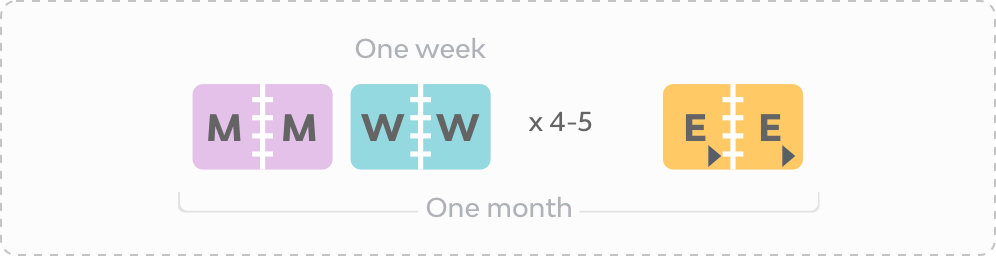
We just added a big new feature this week that we’ve been working on for many months, custom configurations. You can now create your own combination of monthly, weekly, daily and Extra pages.
Although we offer two dozen preset configurations, there are many other possible combinations, so this feature allows you the freedom to assemble a configuration of your choice if it isn’t available in our preset list. As well, it allows us to add more configuration options either later this year and/or next year.

As part of this update, we also added two new options. You can now:

So now, with these new features, you can make a variety of highly-personalized planners, such as:
A 4-month student planner with labels for your courses for one term;
A short-term planner to get you to a key date, such as your birthday, to start your next planner and track your year.
A special 5-month project planner, with a large assortment of tracking Extra pages each week to help track all aspects of your project;
Using the custom configuration option is easy, but in case you’re not sure how to go about it, we’ve added a short video on the new configuration page, showing four examples of how to create a custom configuration.

Please be aware that the Personal-year planner option has been discontinued – It added complexity to the process of selecting a planner without adding enough benefits. Instead, we added all the features available previously in Personal-year planners, such as planning pages and the ability to start your planner on any day of the month, to our standard planners. So you get all the features, but with a more streamlined process.
As a result of this change, the red “N” icon for note pages and the yellow “P” icon for Planning pages have been combined into one icon, an orange “E” icon for Extra pages.
If you want to check out our custom configurations, just do as you’ve always done: Select either planners or inserts and the next page will be the configuration page.
And, more good news!: We will add new spiral-bound cover designs by mid-October! We know that many of you have been asking for new designs this year, so we‘ve been working on making that happen. We hope you’ll like them.
As always, let us know if you have any questions,
At this time of year, some customers ask us about 16-month academic planners. We don’t offer them, in part because we find them a bit wasteful: The pages for months 13 to 16 don’t usually get used since they get replaced by the next planner that starts next August or September. We also have a different way to keep track of future appointments.
We offer “Future month” Extra pages. You can add these anywhere in your agendio, although the best spot is right after your calendared pages. They serve the same purpose as the pages for months 13 to 16, but in a leaner way, leading to a slimmer and lighter planner.

You can use them to write down your appointments and todos for any month after the end of your agendio and then transfer the contents to your next planner when the current one ends. Each page is divided to offer a separate line for each day of the future month, so it’s easy to see if, for example, a future doctor’s appointment date conflicts with another activity.
You can see examples of our Future month page and other Extra pages in our Features section at https://agendio.com/features#extra
Powered by WordPress & Theme by Anders Norén