
We recently redesigned all our gift e-cards. They’re now much more colorful and fun. We’ve also added one new one, for students.

You can see them on our gift e-card page, at
https://agendio.com/ecards/

We recently redesigned all our gift e-cards. They’re now much more colorful and fun. We’ve also added one new one, for students.
You can see them on our gift e-card page, at
https://agendio.com/ecards/
We now offer a thicker version of our highest quality, optimally smooth white paper.
Please note that it’s available only with a custom configuration. To use it in your next agendio, go to the Custom configuration screen, which is now the default configuration screen, and select the 120 gsm paper option.
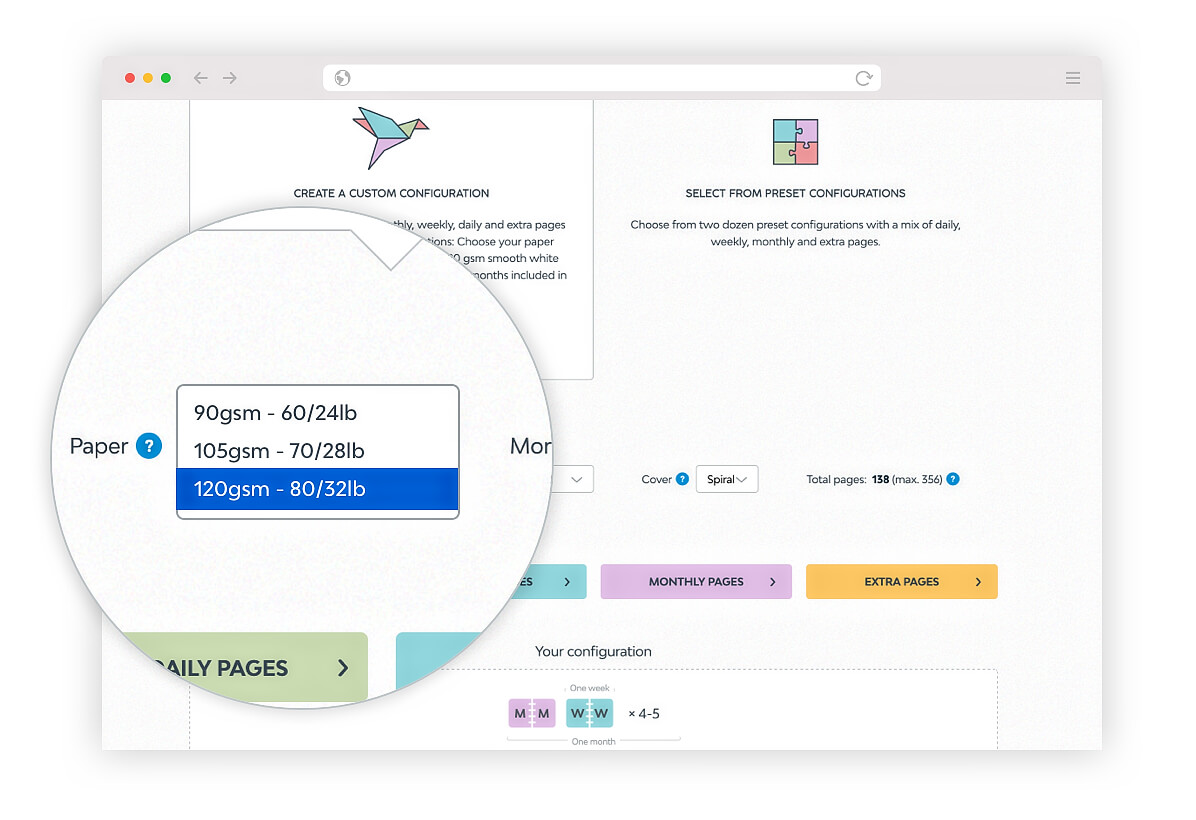
You can find out more details about our paper in our Features section, at https://agendio.com/features/#paper
You can now add tabs when you purchase most sizes of Agendio inserts. They are available for all page sizes 7” or bigger, which includes Filofax A5 and Franklin Classic.

You get the same tabs as we offer on our planners, with a few spare ones for adding custom tabs, and with the option of an additional tab strip if you have a large number of Extra page sections.
We now offer “End of monthly sequence” Extra pages.
If you select this option, we will place your end-of-monthly-sequence Extra pages (or EOM pages) after all the other pages for each month.
For example, if you select a “MMWW” (or monthly-weekly), and you add EOM pages, we will place your pages as follows: The first monthly, followed by all of that month’s weeklies, then your EOM Extra pages, then your next monthly, your next bunch of weeklies, your next EOM pages, and so on…
It will look like this:

And the configuration will look like this:
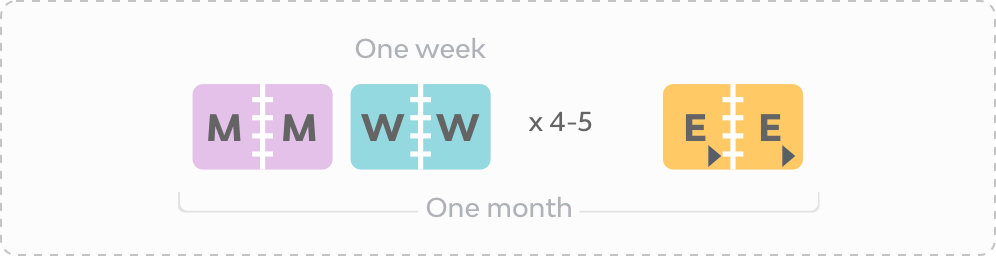
Notice that the end-of-sequence icons show a small right-facing arrow below the E, to show that they are not standard Extra pages.
You don’t have to include monthly pages in your configuration to use EOM Extra pages.
For instance, you might have a Weekly-only configuration, WW, but you would now like four pages at the end of each monthly sequence. Perhaps you’d like some note or summary pages but you don’t need them every week. You would create this sequence on the custom configuration page by choosing WW for your weeklies, then one set of EOM Extra pages, then another. Your final configuration would look like this:

And would create the following sequence of pages:

You can also mix standard and EOM pages in one configuration. You could select monthly pages, followed by standard Extra pages, then weeklies and then EOM pages. The resulting configuration would be:

and would create the following sequence of pages:

Please note that you can select EOM pages only on the Custom configuration selection page.
If you add EOM pages, and you’re not sure if your configuration was created correctly, you can look at the preview on the Builder review page. That’s actually something you should always do before ordering, to catch any errors in customizations you may not have noticed.
You can now add page numbers to your agendio, at the bottom of each page, centered.

We’re close to releasing some new features we’ve been working on this year. Since many of you are now customizing your planners for next year, we decided to tell you now, in case you were interested in these features. They should start being rolled out in a week or two:

End-of month Extra pages are Extra pages that are placed at the end of each monthly page sequence, whether or not you include monthly pages in your agendio
Spiral upsizing is the option to get your spiral-bound agendio with a spiral one size bigger than usual.
Like most everyone else, our 2020 has not proceeded as we originally planned. Covid-related physical distancing and other restrictions we faced while manufacturing your agendios has reduced our productivity, and we haven’t been able to release as many new features as we had planned at the beginning of the year. The delayed features, including larger fonts for activities and events, should be added by summer 2021.
The plastic covers that we include with our spiral-bound planners are now 50% thicker than they were previously.
During 2019, a small number of customers reported that their plastic covers had issues or had failed. Although only a very small number of customers were affected, and the cause of the issues may not even have been related to the plastic, we nonetheless decided to look into providing a more resistant plastic for all customers. Our conclusion was to make them thicker, which we did in late 2019. So now they’re the thickest of any plastic planner covers available.
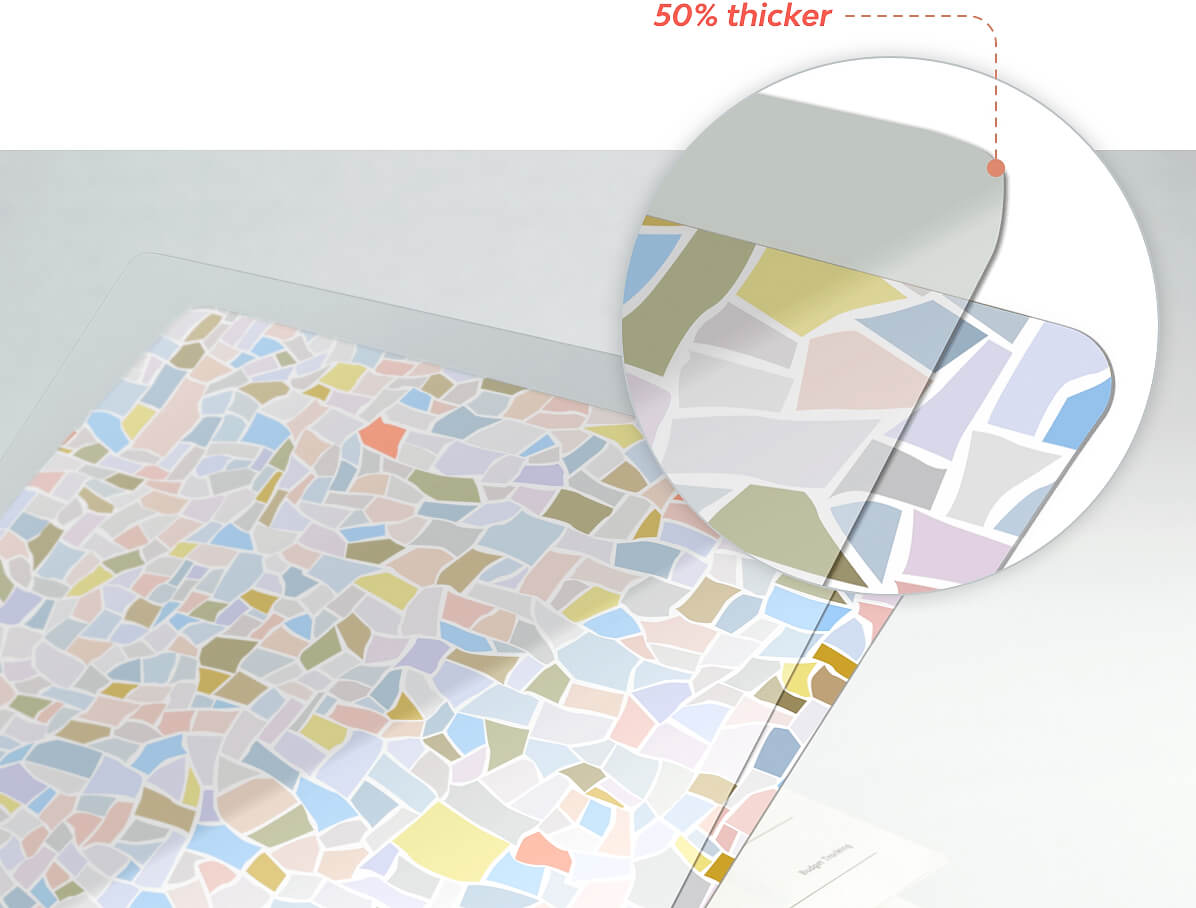
We’re confident that our new plastic covers will be even more resistant and durable, so let us know if you have any issues with yours.
Everyone has been so happy with our new Change configuration option that we decided to double up the fun: You can now also change your model without starting over.
The button to change models is on the Builder Layout page, near the top left corner. We placed it on the layout page because, if you have a hybrid planner, such as a monthly-weekly, we need to know which one you want to change. So if you’re looking at your weekly layout and you click Change model, we’ll bring you to the weekly model page. If you’re looking at your monthly and click Change model, then you’ll be changing your monthly model.

When you land on the models page, you will see that we put your current model at the top of the list, in case you don’t remember which model you selected previously.
Once you select your new model, click customize just like you did originally, and we’ll bring you right back to the Builder.
You can change only one frequency at a time. Using the same example of a monthly-weekly planner, if you want to change both your monthly and your weekly, change one of them, come back to the Builder then change the other one.
Please note that if you change your model, we won’t transfer your customizations from your previous one, because the specifications for each model are often different, including number of labels, limits on numbers of characters in each label a well as the numbers of activities, events and holidays.
As always, let us know if you have any questions.
We just added more than a dozen new covers designs, to go with our spiral-bound planners. There are a variety of florals, and we have added new categories such as “Art” and “Quotes”.
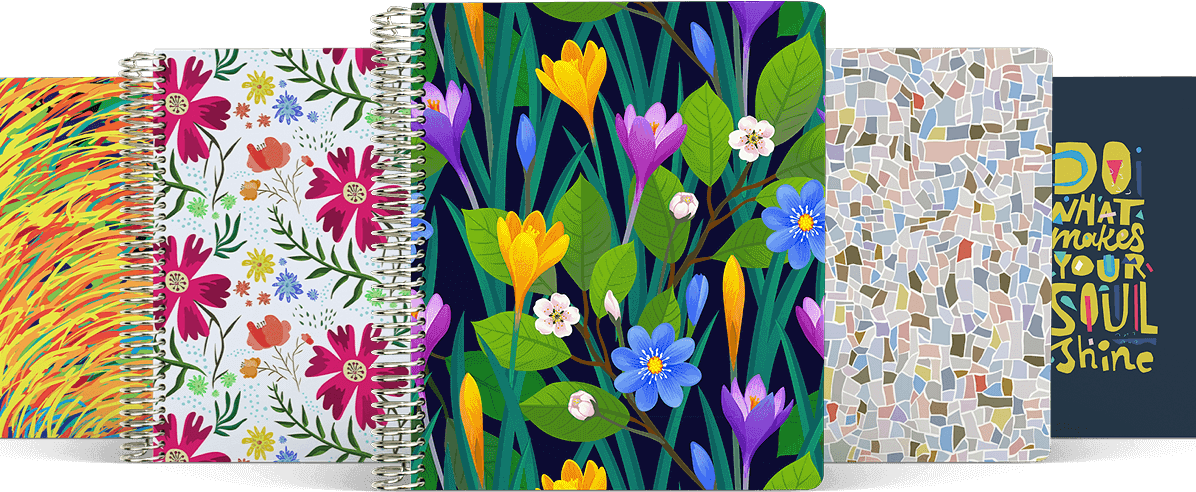
Our new covers offer different options than our original ones: Traditionally, you could change the background color on most of our covers. On our new covers, you can’t change the background color, but you can change the color of the customization strip on the left. On some covers you can also change the color of the text.
You can see our new covers on the Features page, in the Design section.
Powered by WordPress & Theme by Anders Norén
